FreeScreenTest helps you tell dead, stuck, and hot pixels apart in seconds: a dead pixel stays black on bright colors, a stuck pixel glows solid red, green, or blue on dark screens, and a hot pixel shines bright white all the time.
How Every Tiny Screen Dot Works (In Plain English)
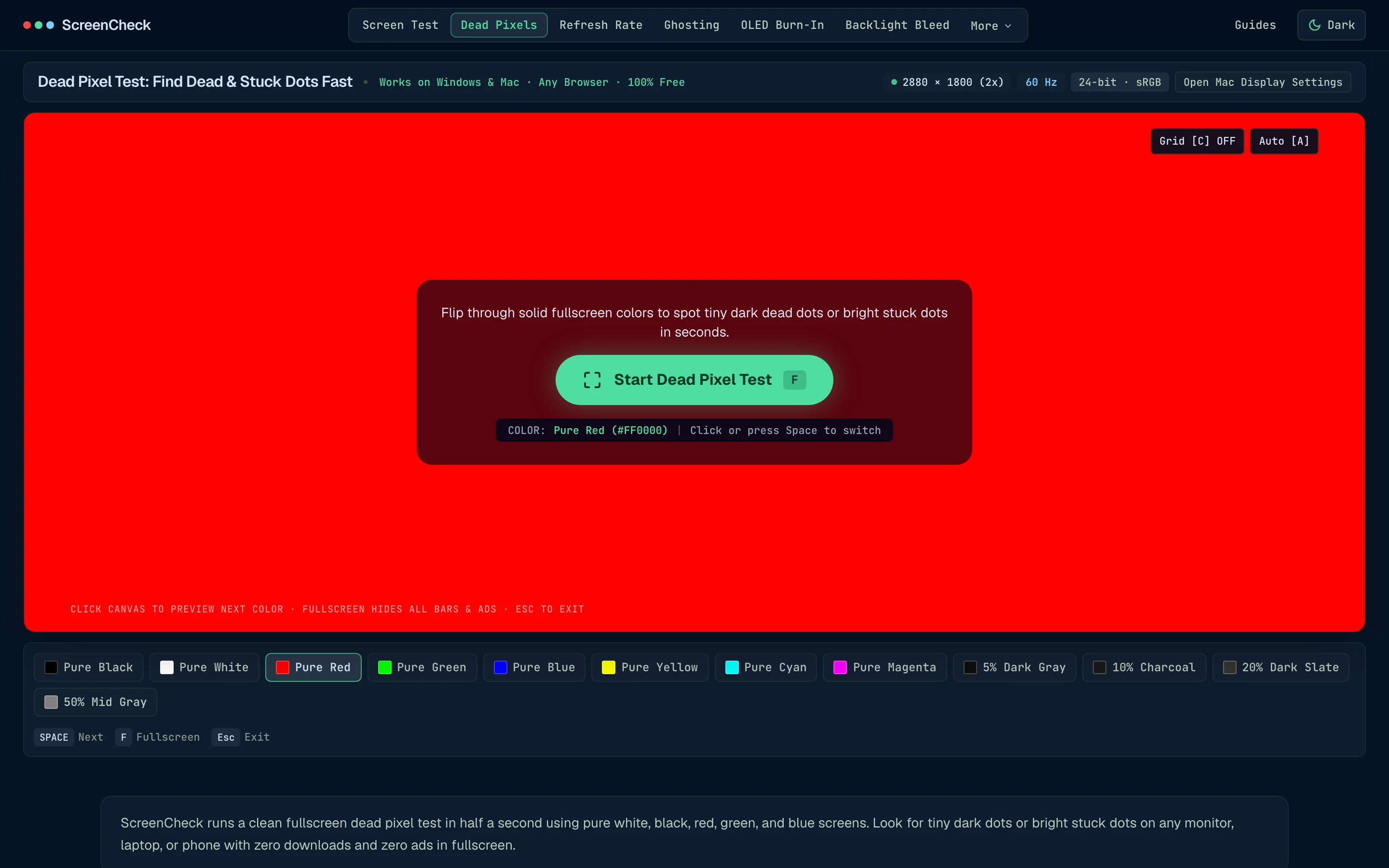
Spotting one tiny weird dot on a brand-new monitor or laptop is stressful, especially when your store return window is ticking. Open our free fullscreen Dead Pixel Test in another tab and use this simple plain-English checklist to find out what you are looking at.
Every single dot on your screen is made of three tiny lights sitting right next to each other: one red, one green, and one blue. When just one of those tiny lights breaks or jams, you see a strange speck. That is why flipping through solid colors exposes bad dots much faster than staring at your desktop wallpaper.
- All three lights ON = pure white.
- All three lights OFF = pure black.
- Only one light ON = pure red, pure green, or pure blue.
Quick Spotter Chart: Dead vs. Stuck vs. Hot
Compare what you see on bright and dark slides to identify the exact dot type:
| Dot Type | What It Looks Like | Best Color to Spot It | Why It Happened | Can Software Fix It? |
|---|---|---|---|---|
| Full Dead Pixel | Crisp black dot on every bright screen | Pure White | All three color lights are broken and get no power. | No — hardware failure |
| Half-Dead Dot (1 Color Out) | Black dot on only red, green, or blue | Pure Red, Green, or Blue | Just one of the three tiny color lights failed. | No — hardware failure |
| Stuck Pixel | Bright red, green, or blue dot on black | Pure Black | One tiny LCD color switch is jammed open. | Sometimes — never guaranteed |
| Hot Pixel | Bright white dot on black | Pure Black | All three color lights are locked on nonstop. | Rarely — usually permanent |
3-Step Dust & Glitch Checklist (Before You Return Anything)
Before boxing up your monitor, rule out harmless dust or a software bug in 30 seconds:
- Wipe the glass gently: Turn the screen dark and wipe lightly with a soft dry microfiber cloth. Tiny crumbs and dried droplets look just like dead dots on white pages.
- Tilt your head left and right: Dust sits on top of the outer glass, so it seems to slide slightly when you move your head. A real dead or stuck pixel stays locked flat inside the screen.
- Take a screenshot and drag it: Press Win + Shift + S on Windows (or Cmd + Shift + 4 on Mac) and move the saved image across the screen. If the dot moves with the image, it is a software bug—not broken hardware.
Honest Truth: Can You Fix a Dead or Stuck Pixel?
Many websites flash bright neon boxes and promise to fix every bad pixel in five minutes. Here is the honest reality:
- Dead black pixels cannot be fixed by software. A broken light switch inside the screen cannot be repaired by a web page or video. Your real options are a store exchange or warranty claim.
- Stuck bright LCD dots occasionally wake up. Because a stuck red, green, or blue dot still has power, normal use or gentle color cycling sometimes unjams it. Never stare at rapid flashing if flashing lights bother you, and stop if nothing changes after ten minutes.
- Never push or rub the dot with a pen. Old forum tricks suggested pressing stuck pixels with a cloth-wrapped eraser. On thin modern monitors and laptops, pressing the glass easily leaves a huge cloudy permanent mark and voids returns.
- Try one 60-second power unplug. Unplugging the monitor from the wall for a minute resets its internal board and occasionally clears a one-time frozen dot.
Keep It or Return It? (Store Rules vs. Brand Warranties)
Timing matters most when you find a bad dot on a new display:
Checking a brand-new display out of the box? Run our full 5-minute How to Test a New Monitor checklist—including our Refresh Rate Test and Backlight Bleed Test—before your return window closes.
- Store 14- to 30-day returns are your best friend: Most big retailers let you exchange a new monitor easily inside the first two to four weeks, even for a single annoying dot.
- Factory warranty rules (ISO 9241-307): Under the standard ISO 9241-307 rule, Class I means zero bad pixels, while Class II allows up to 2 bright pixels, 2 dark pixels, or 5 broken color subpixels per million pixels. Most consumer warranties follow Class II-style limits for dark dots (sometimes adding a special "Zero Bright Dot" promise on pricey models).
- Use the center-screen rule: One bright stuck green dot right in the middle of your browser will bug you every day—exchange it. One tiny dark dot tucked in the far corner of a 4K screen often disappears during real use.
Frequently Asked Questions
Do dead pixels spread across a screen over time?
Can OLED phones and monitors get stuck pixels?
Why does one dead blue dot look faint yellow on a white screen?
Can a dead pixel appear months after buying a screen?
Open Fullscreen Dead Pixel Test
Flip pure white, black, red, green, and blue fullscreen — 0 bars, 0 ads.
Explore Next on FreeScreenTest
Dead Pixel Test
Flip through solid fullscreen colors to spot tiny dark dead dots or bright stuck dots in seconds.
How to Test a New Monitor
Run these 7 quick checks right out of the box—or before paying for a used monitor—so you can exchange a flawed screen before your return window closes.
IPS Glow vs. Backlight Bleed
Use the 3-second Head-Shift Test on pure black and 2% near-black slides so phone night mode never fools you.