FreeScreenTest spots this Apple surprise every day: even on a brand-new 120Hz MacBook Pro, iPad Pro, or iPhone Pro, Apple Safari locks web tests to 60 Hz (or 30 Hz in Low Power Mode) by default to save battery—your screen is almost certainly fine.
Why Apple Limits Safari Web Pages to 60Hz
If your MacBook refresh rate test shows 60Hz and made you worry your screen is broken, take a breath. You can confirm true 120Hz in seconds with FreeScreenTest's Refresh Rate Test using either a quick browser switch or one hidden Safari toggle below.
Apple ProMotion screens smoothly ramp up to 120Hz while you scroll everyday pages and apps. However, animated web pages—like browser games, live graphs, and online Hz tests—can drain laptop and phone batteries quickly at 120 frames per second. To keep battery life long, Apple ships Safari with one hidden switch turned ON by default:
- Switch Name:
Prefer Page Rendering Updates near 60fps - Normal Power Result: Locks browser tests to 60 Hz even on 120Hz, 144Hz, or 240Hz screens.
- Low Power Mode Result: Cuts browser tests down to 30 Hz, making smooth motion look choppy.
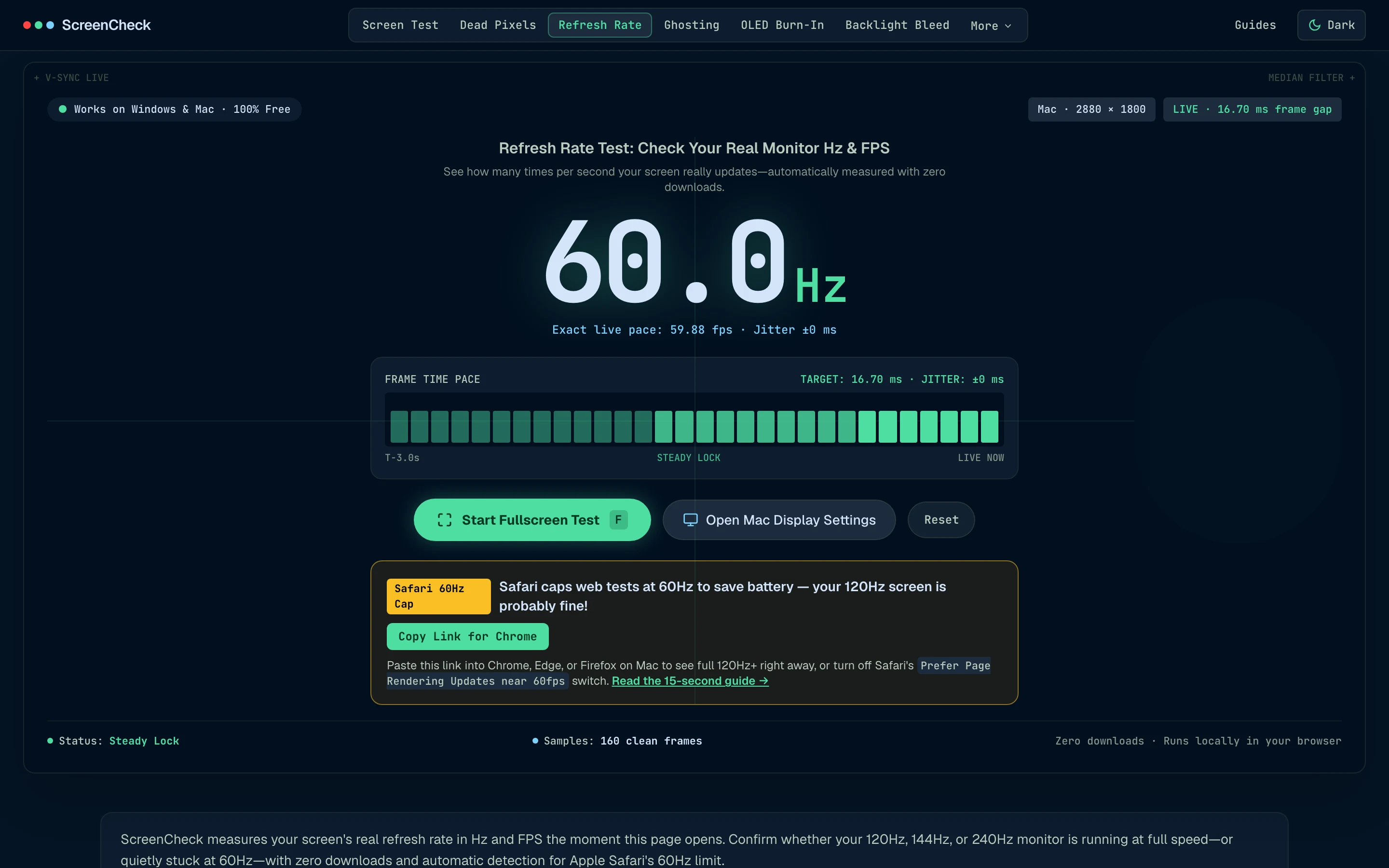
Fastest Way on Mac: Just Open Chrome or Edge (5 Seconds)
Do you only want to verify your MacBook Pro or external 144Hz monitor right now without changing Safari settings? Desktop Chrome, Edge, and Firefox on Mac do not follow Safari's 60Hz cap.
- Click Copy Link for Chrome on FreeScreenTest's Refresh Rate Test.
- Paste the link into Chrome, Firefox, Brave, or Edge on your Mac.
- Watch the live Hz number jump straight to 120 Hz (or your external monitor's top Hz).
How to Unlock 120Hz Inside Safari on Mac (15 Seconds)
Prefer staying in Safari? Turn off the 60fps switch in six quick clicks:
- Step 1: Open Safari and click Safari > Settings in the top bar (or press Cmd + ,).
- Step 2: Click Advanced and check Show features for web developers.
- Step 3: Click the new Feature Flags tab that pops up in Safari Settings.
- Step 4: Type
60fpsin the search box. - Step 5: Uncheck
Prefer Page Rendering Updates near 60fps. - Step 6: Quit Safari completely (Cmd + Q), reopen FreeScreenTest's Refresh Rate Test, and enjoy 120 Hz.
How to Unlock 120Hz in Safari on iPhone Pro & iPad Pro
On iPhone and iPad, Chrome and Edge usually share Apple's Safari engine underneath, so flipping Safari's switch is the cleanest fix:
(Note: If a specific iOS version or model does not show that Feature Flag switch, you can always verify native high-Hz browser motion directly in desktop Chrome or Edge on a Mac or Windows PC.)
- Step 1: Turn Low Power Mode OFF (Low Power Mode forces 60Hz everywhere and 30Hz in Safari).
- Step 2: Open the Settings app.
- Step 3: On iOS 18+, go to Settings > Apps > Safari > Advanced > Feature Flags. On iOS 17, go to Settings > Safari > Advanced > Feature Flags.
- Step 4: Scroll to
Prefer Page Rendering Updates near 60fpsand turn it OFF. - Step 5: Swipe Safari closed from your app switcher, reopen FreeScreenTest, and check the live Hz card.
Browser Speed Cheat Sheet for Apple Devices
Check at a glance which browser shows true 120Hz+ right away:
| Device & Browser | Default Test Speed | Shows True 120Hz+ Right Away? | Easiest Action |
|---|---|---|---|
| Mac Safari | Capped at 60 Hz | No | Open Chrome/Edge or uncheck Safari's 60fps flag |
| Mac Chrome / Edge / Firefox | Full speed | Yes (120, 144, 240 Hz) | Test immediately—no setup needed |
| iPhone / iPad Safari | Capped at 60 Hz (30 Hz Low Power) | No | Turn off Low Power Mode + disable Safari's 60fps flag |
| Windows Chrome / Edge | Full speed | Yes (120–360 Hz) | Check Windows Display Settings if stuck at 60Hz |
Still Stuck at 60Hz on a Mac? Check These 4 Things
If Chrome on your Mac still shows 60 Hz, Safari is not the culprit. Check these four simple items:
- Mac Display Settings: Open System Settings > Displays and make sure Refresh Rate is set to ProMotion (or your external monitor's highest Hz, not
60 Hertz). - Mac Battery Settings: Turn Low Power Mode off while testing.
- Cable or USB-C Hub: Budget USB-C hubs and old HDMI cables often cap external 4K screens at 60Hz. Plug in a direct USB-C to DisplayPort 1.4 or HDMI 2.1 cable.
- Check your exact Mac model: MacBook Air models and standard non-Pro iPhones have 60Hz built-in screens, though Apple Silicon MacBook Airs can still run external monitors at 120Hz+. Check screen size and scaling anytime on our Resolution Checker.
Frequently Asked Questions
Is it safe to turn off Safari's 60fps limit?
Will turning off the 60fps flag drain my battery faster?
Why does my iPhone Pro jump between 60Hz, 80Hz, and 120Hz during the test?
Can Safari test my external 144Hz or 240Hz gaming monitor on a Mac?
Open Live Refresh Rate Test
Auto-detects Safari 60Hz limits and gives a 1-click Copy Link for Chrome button.
Explore Next on FreeScreenTest
Refresh Rate Test
See how many times per second your screen really updates—automatically measured with zero downloads.
Ghosting Test
Follow the moving crafts with your eyes across light, mid-gray, and dark lanes to spot trails or bright outlines.
How to Test a New Monitor
Run these 7 quick checks right out of the box—or before paying for a used monitor—so you can exchange a flawed screen before your return window closes.